Automat-it is an AWS Premier Tier Partner and works with the AWS cloud every day. We support hundreds of customers and manage thousands of AWS accounts. Our engineers are continuously learning and improving their AWS skills. Hands-on practice is essential for such progress, but where to practice? A sandbox environment is a perfect choice for testing new AWS services, evaluating new solutions, and ensuring that these tests do not affect any real workloads.
Having the Sandbox account is the best practice, and AWS also mentions this:
Sandbox OU: Groups AWS accounts used for experimentation, testing and development activities, typically with limited access to production resources.
Having a Sandbox account is pretty convenient, but we have to ensure security (isolation) and control time and budget for such a test environment.
In this article, I will demonstrate a solution for effectively managing the AWS Sandbox environment with convenient Web UI controls.
Solution overview
The Innovation Sandbox on AWS solution allows cloud administrators to set up and recycle temporary sandbox environments by automating the implementation of security and governance policies, spend management mechanisms, and account recycling preferences through a web user interface (UI). Using the solution, customers can empower their teams to experiment, learn, and innovate with AWS services in production-isolated AWS accounts that are recycled after use.
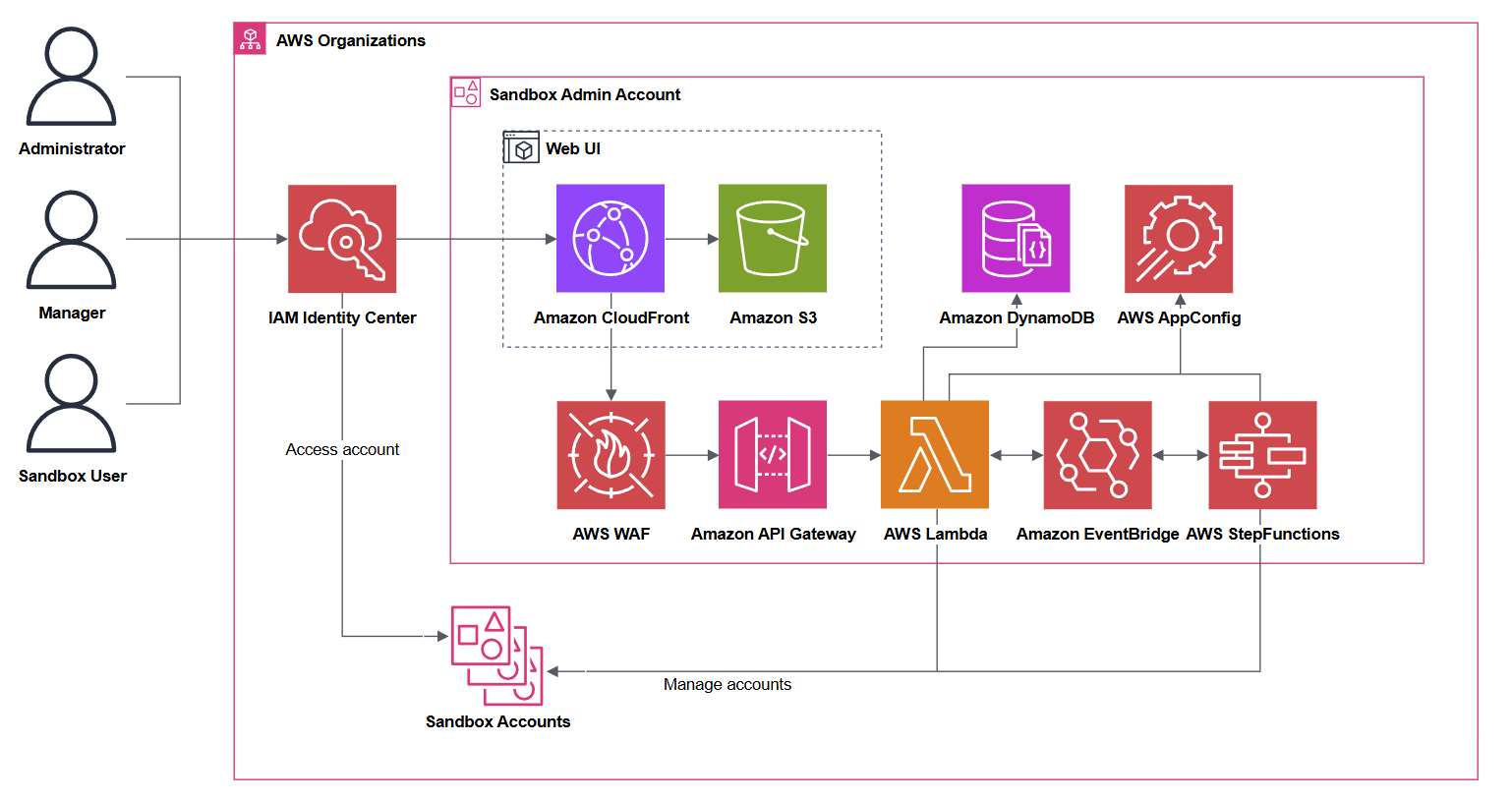
The solution is composed of several CloudFormation templates that are deployed into these accounts:
- The AWS Organizations management account
- The account containing the organizations’ AWS IAM Identity Center instance
- A designated Hub account for the solution to be deployed into.
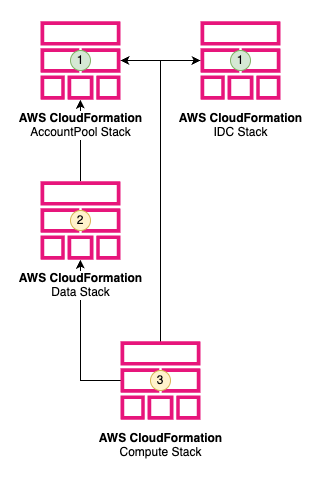
- AccountPool and IDC stacks do not depend on each other. The SandboxAccount stack is created as a service-managed StackSet resource. The StackSet instances will be deployed in the SandboxAccount when the accounts are moved into the Sandbox OU.
- Data stack requires the AccountPool stack.
- Compute stack as it requires all other stacks to be deployed before it is deployed.
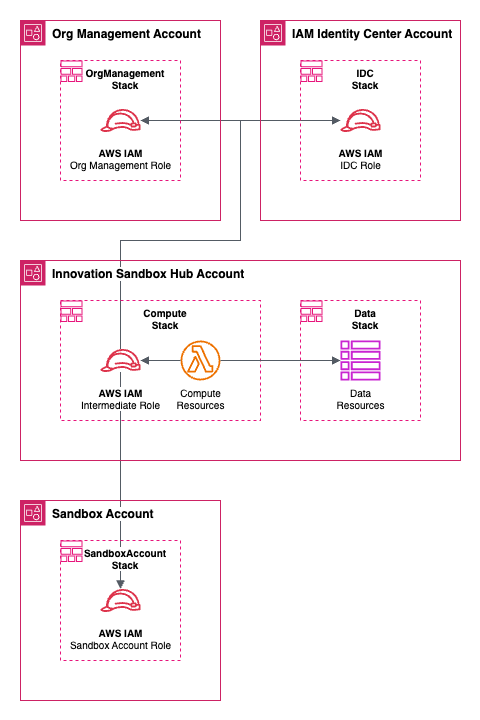
- The AccountPool stack, deployed into the AWS Organizations management account, is used to manage the lifecycle of sandbox accounts controlled by the solution. This stack contains three major types of resources: Organizational Units (OUs) representing the lifecycle of the sandbox accounts (available, active, frozen, clean-up, quarantine, entry, exit); Service Control Policies (SCPs) that limit what actions can be taken in accounts in each OU and by what principals; and An IAM role to allow read actions from Cost Explorer, read actions on the account pool OUs, and move account actions on the account pool OUs.
- The IAM Identity Center (IDC) stack deployed into the AWS Account containing the organizations AWS IAM Identity Center instance is used to manage the solution web UI and sandbox account access (groups and permission sets).
- The Data stack is deployed into the account containing the core of the solution (Hub account). It contains Amazon DynamoDB tables containing the stateful data of the solution, including records for sandbox accounts, lease templates, and leases. This stack also contains the AWS AppConfig hosted configurations for the solution’s global configurations, nuke configurations, and reporting configurations.
- The Compute stack is deployed into the account containing the core of the solution (Hub account). This stack contains all of the stateless (compute) resources used by the solution. The stack contains these two parts:
- The web application is composed of the Amazon CloudFront distribution that serves the static assets of the UI, Amazon API Gateway REST API, a custom AWS Lambda Request Authorizer, and AWS Lambda function handlers for each of the API resources.
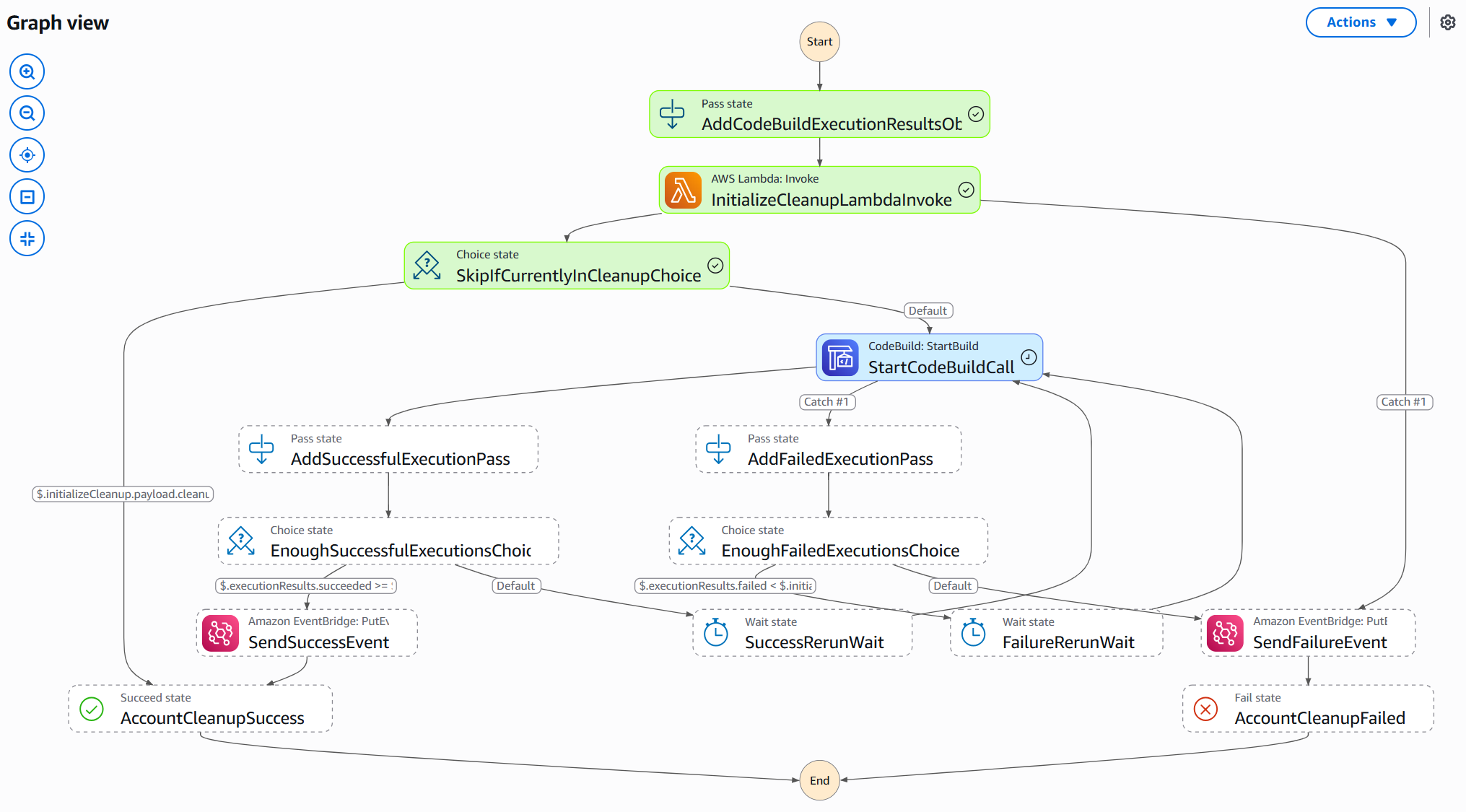
- The event infrastructure consists of AWS Lambda functions, EventBridge rules, Step Functions, and a CodeBuild project that uses a custom public image containing the AWS Nuke binary (for automatic account clean up).
How it works
A user can log in to the Web UI and request access to an AWS Sandbox account.
An administrator / Manager can see/approve/deny a user’s requests, see accounts’ status, and create different lease templates.
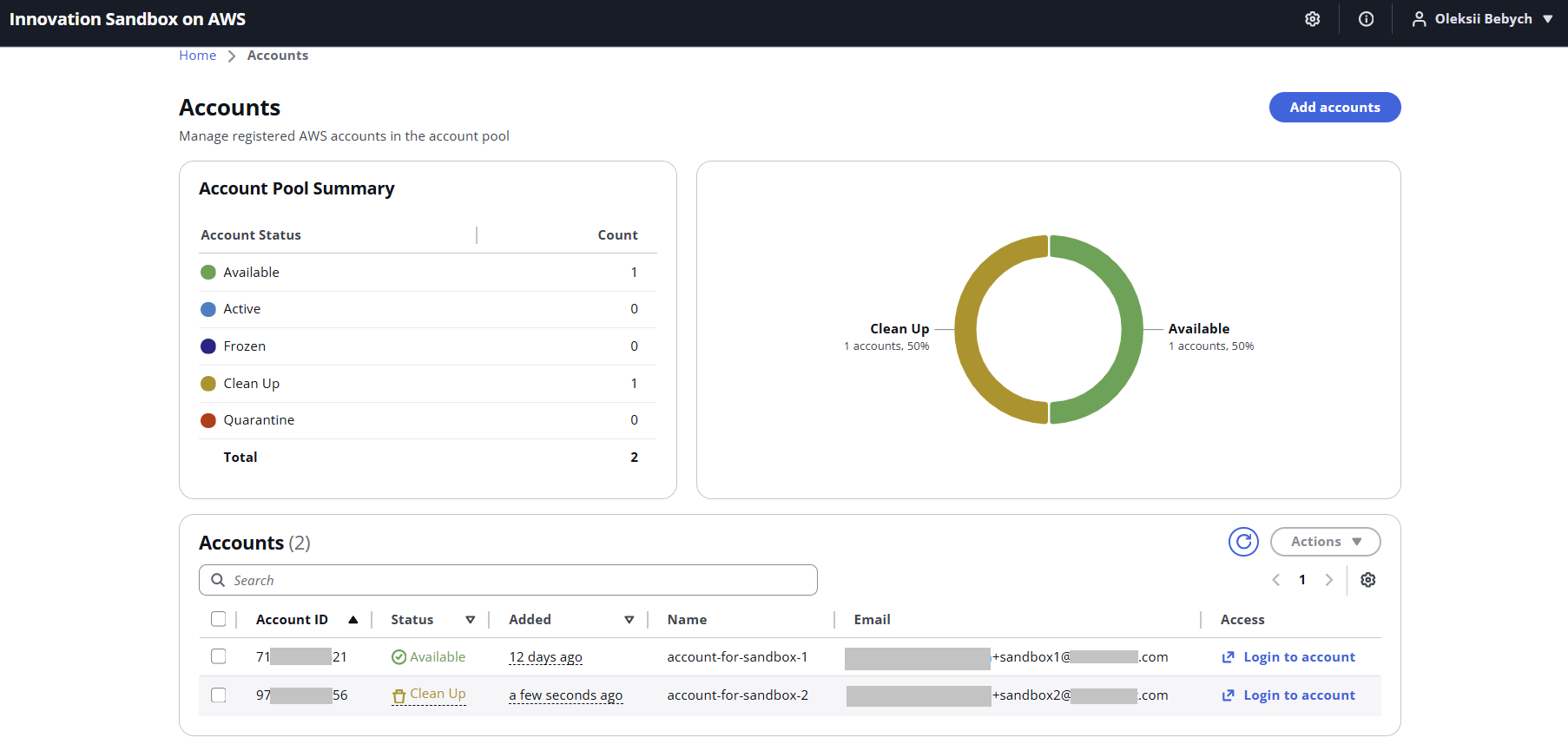
Once you add a new AWS account to the Sandbox pool, it will be automatically cleaned by the AWS Nuke tool. “Available” accounts can be requested by users:
Account clean-up process is managed by Step Function and CodeBuild:
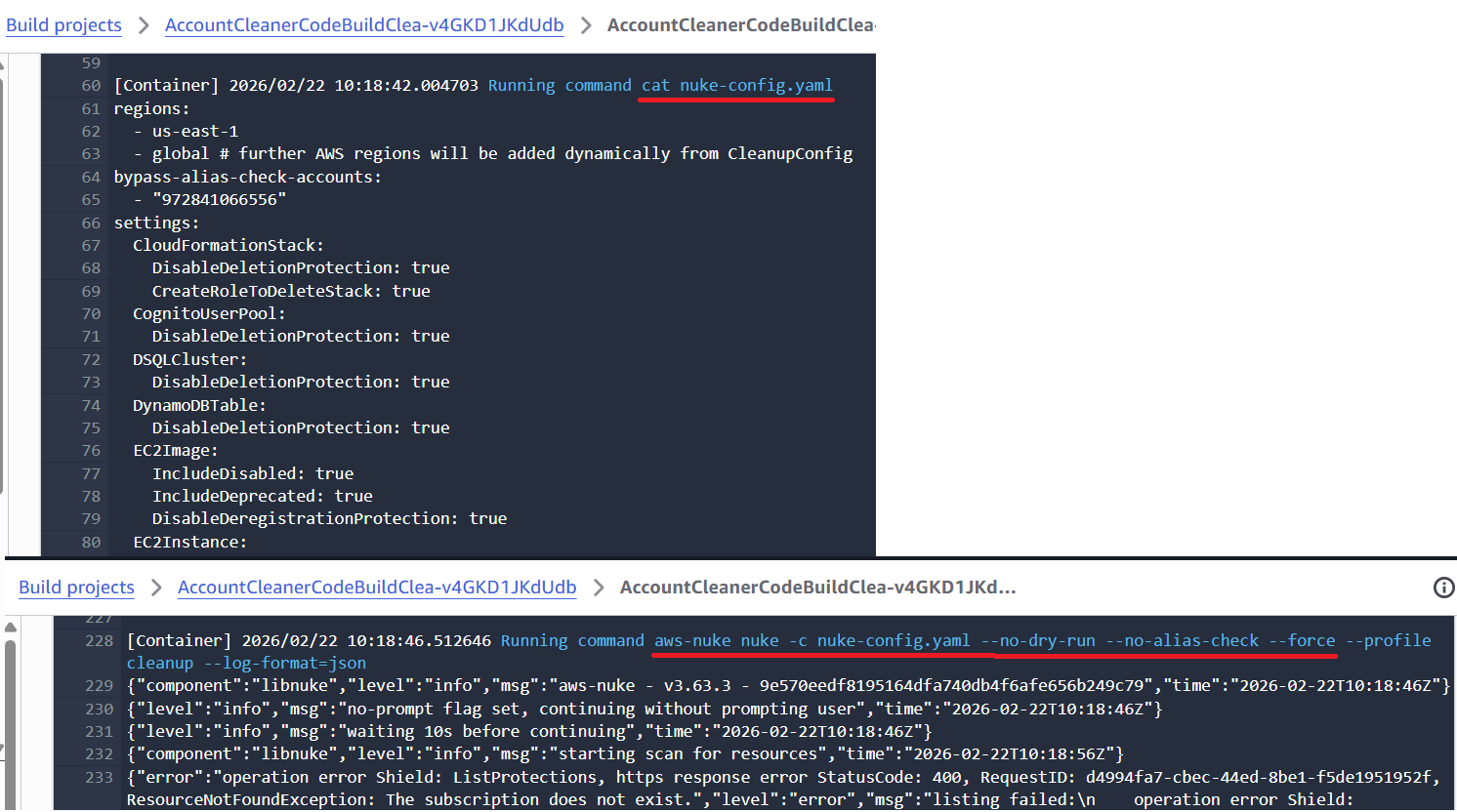
AWS Nuke config can be edited in AppConfig, so you can exclude some resources from removal, for example, AWS Control Tower components (AWS Config rules, IAM roles, etc.):
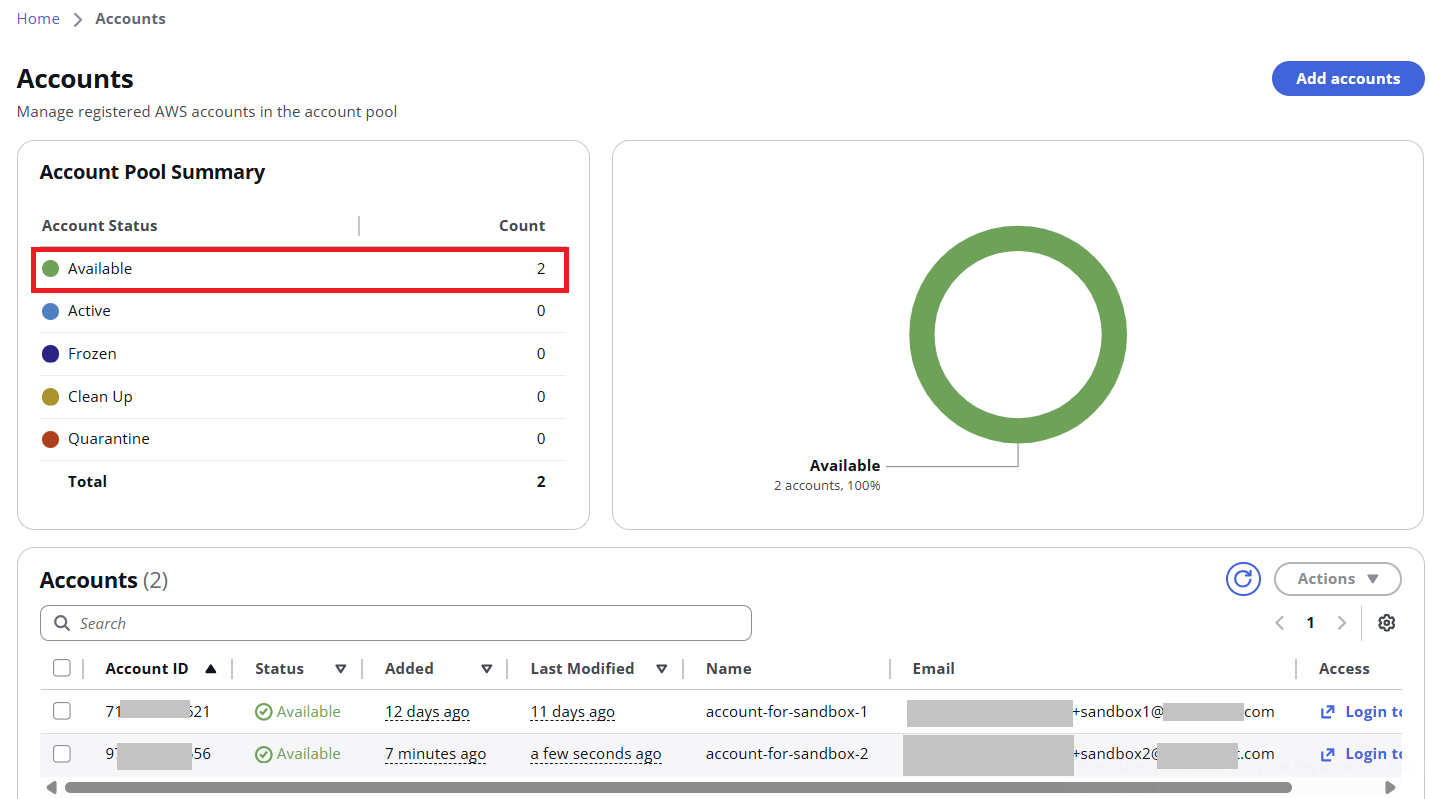
If the clean-up process did not succeed for some reason, the account will be placed in the “Quarantine” OU, and the administrator will need to log in and troubleshoot it manually; otherwise, the account goes to the “Available” OU:
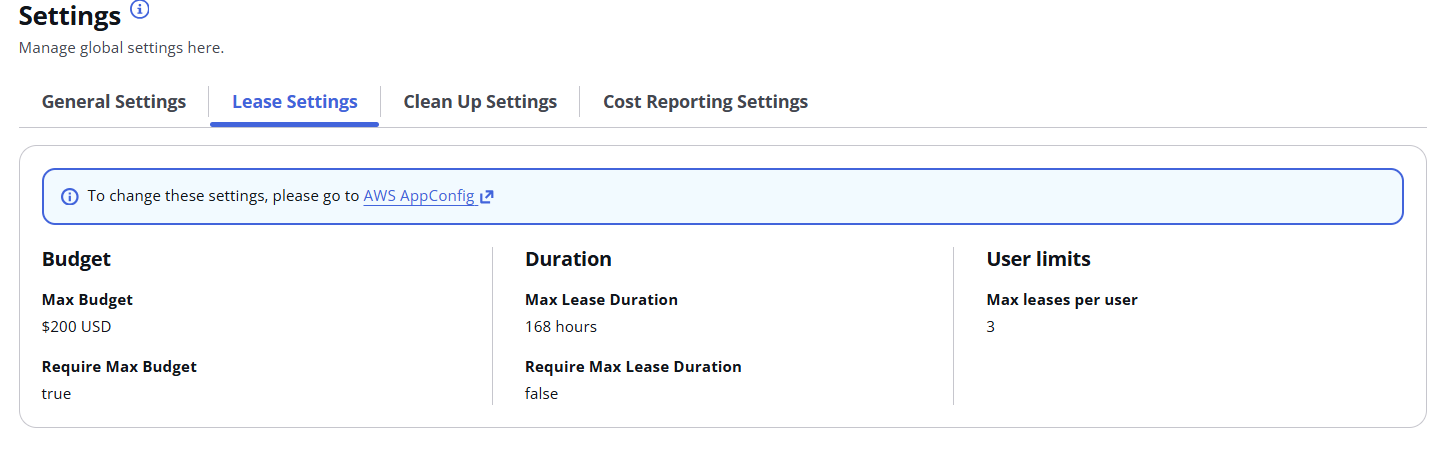
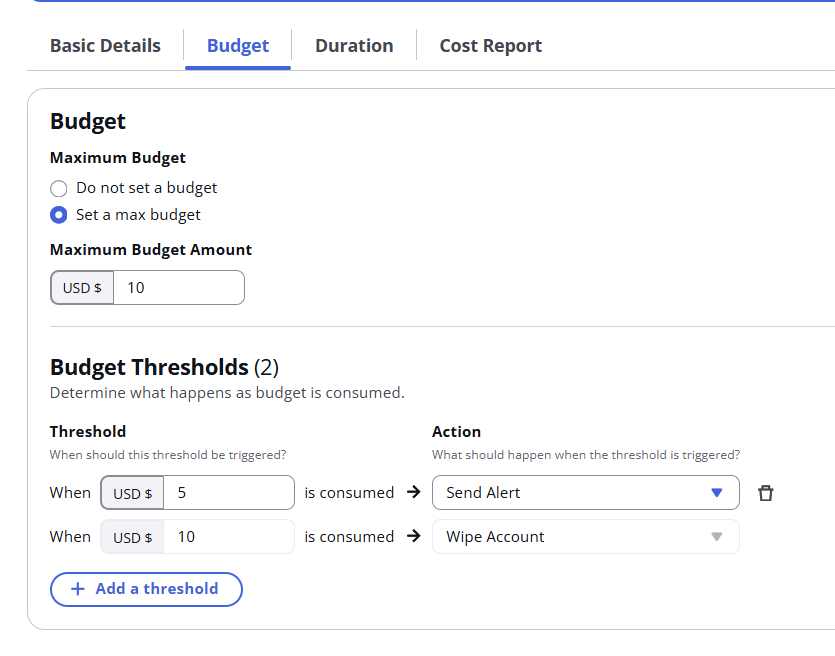
In a Lease template, the admin can set Max Budget ($), Max duration (hours) and what to do with accounts when thresholds are met (freeze account, automatically clean-up or just send notifications):
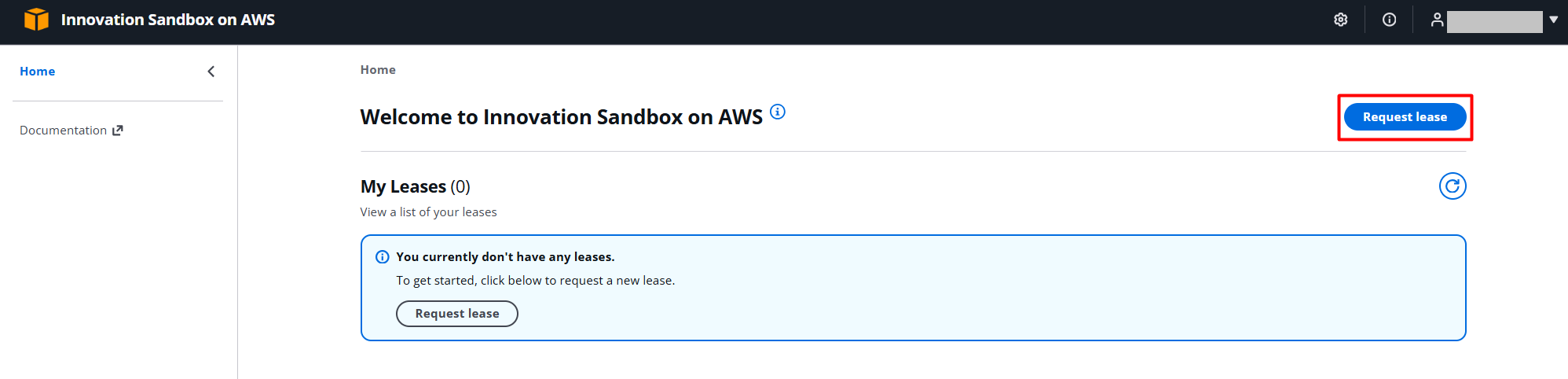
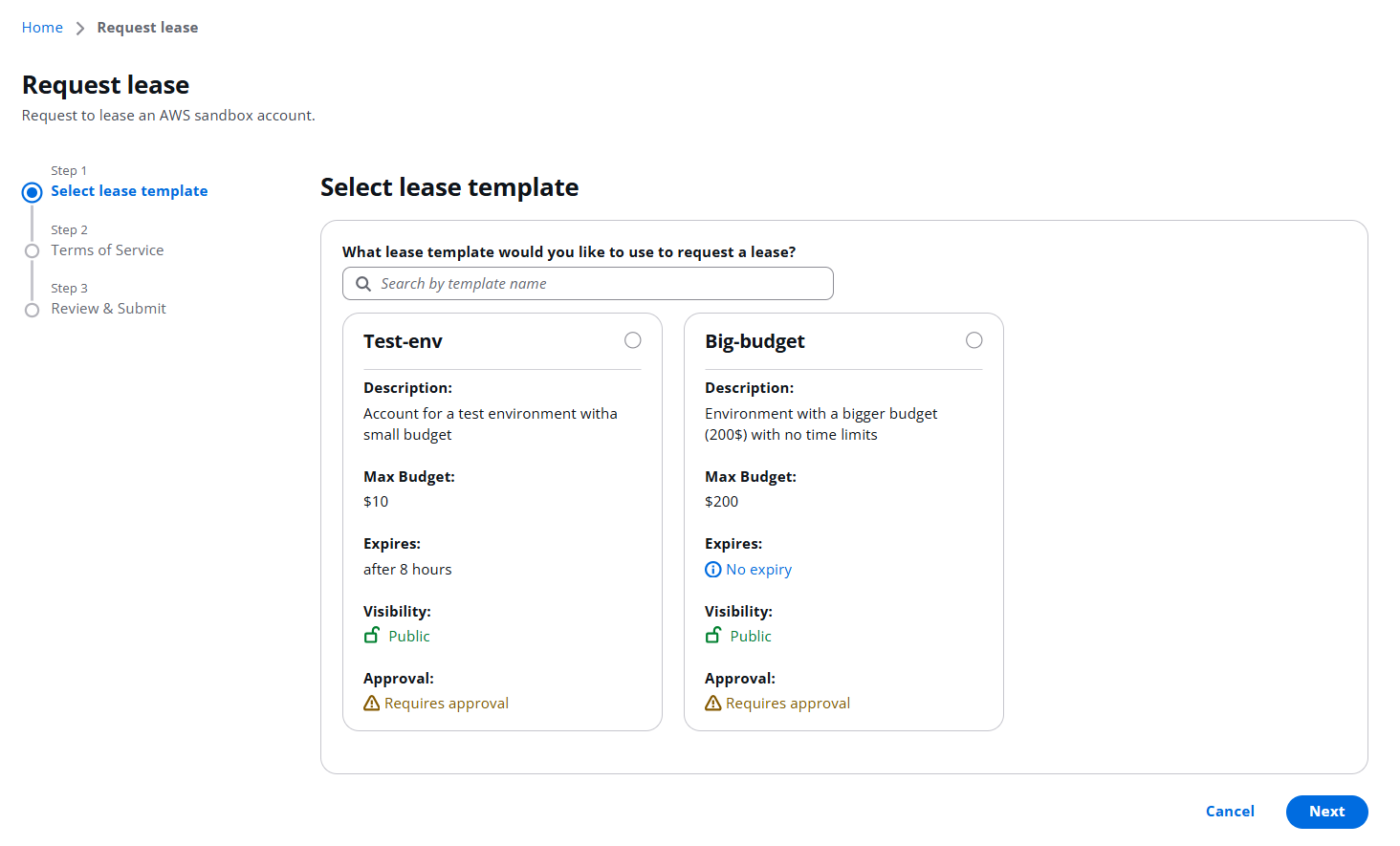
A user can request a Lease from the available templaces, which were previously created by an Admin:
You can also disable some limits or not require admin approval for some least templates:
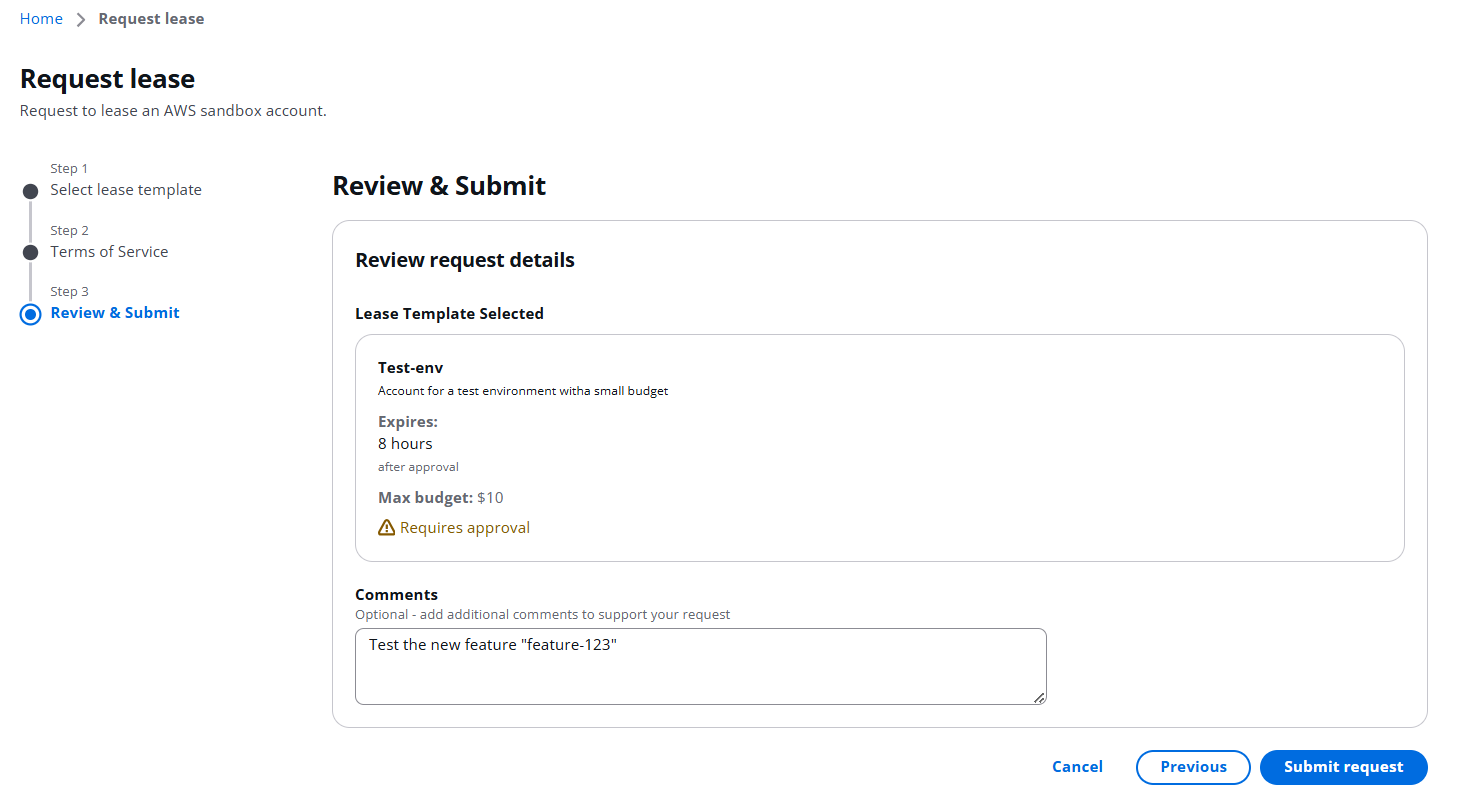
A user can add a comment, why a Sandbox environment is needed:
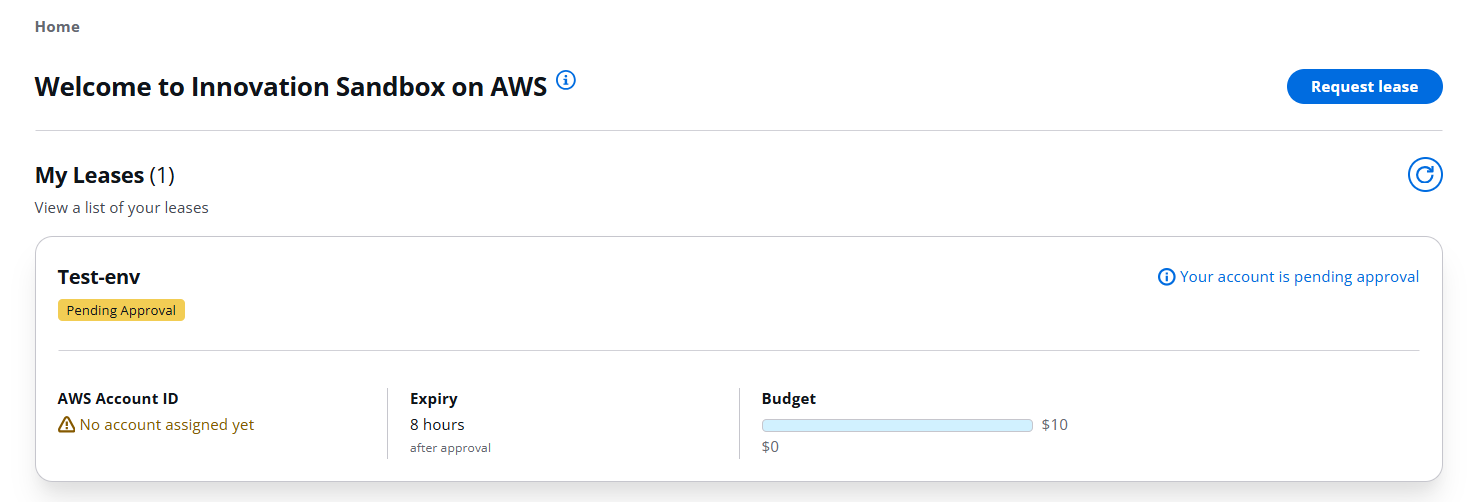
Then wait for admin approval:
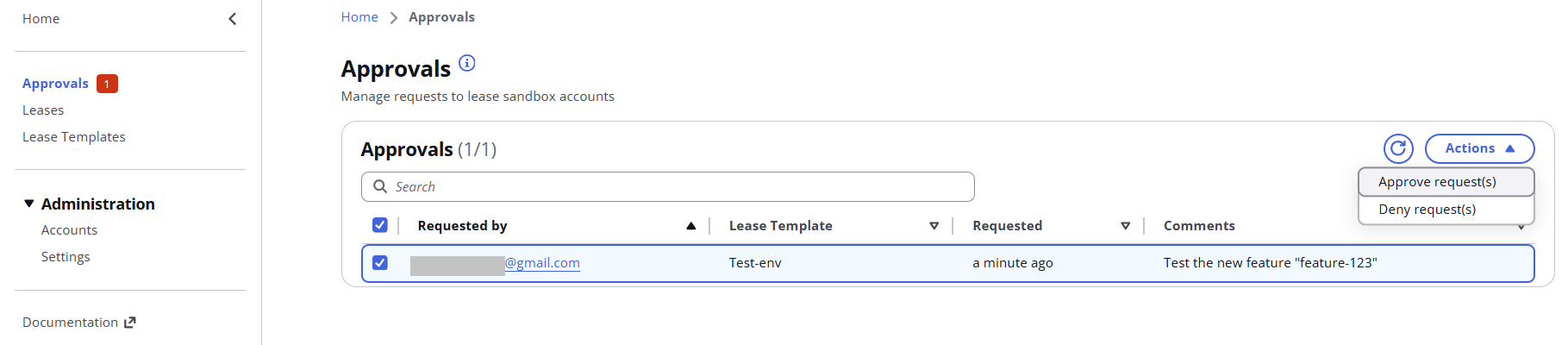
Once an admin approves the request:
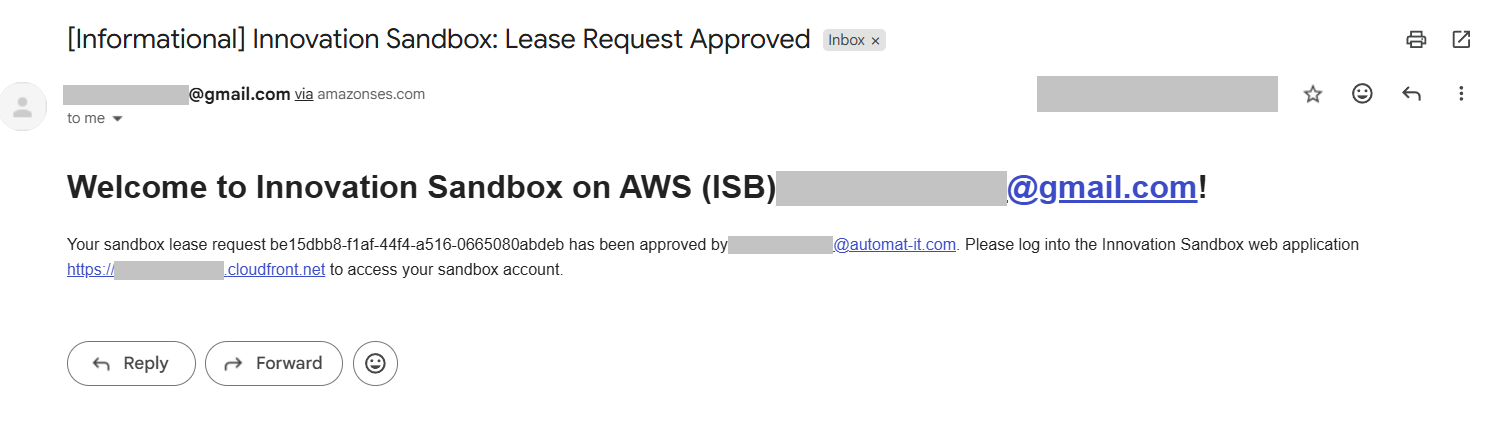
An email notification with the confirmation has been sent to the user:
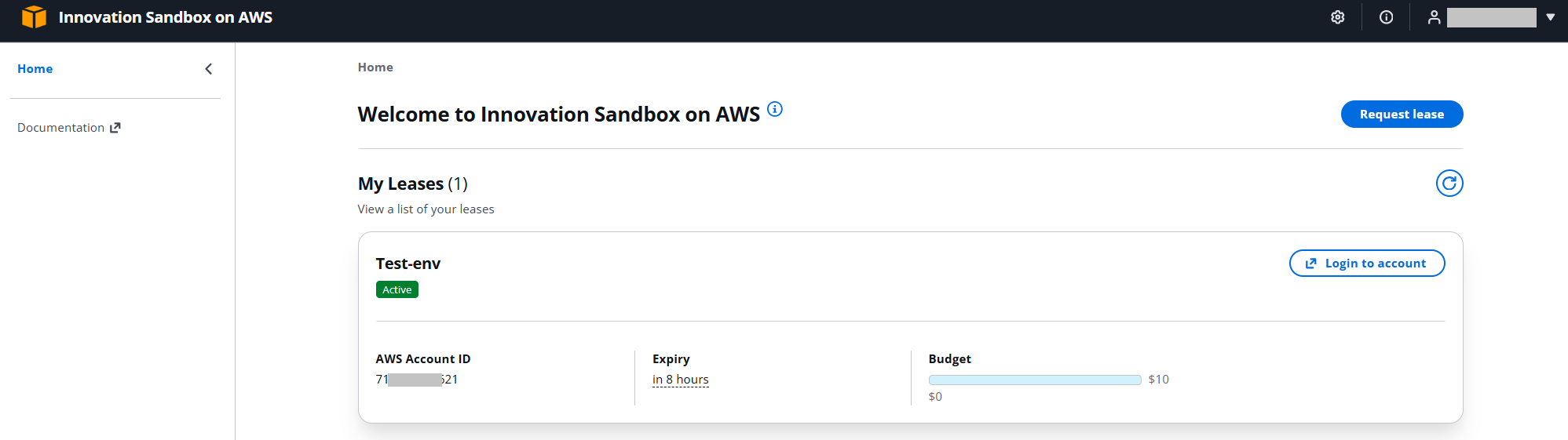
The user sees the active lease and the button to log in the the account:
AWS WebUI and programmatic access keys are available:
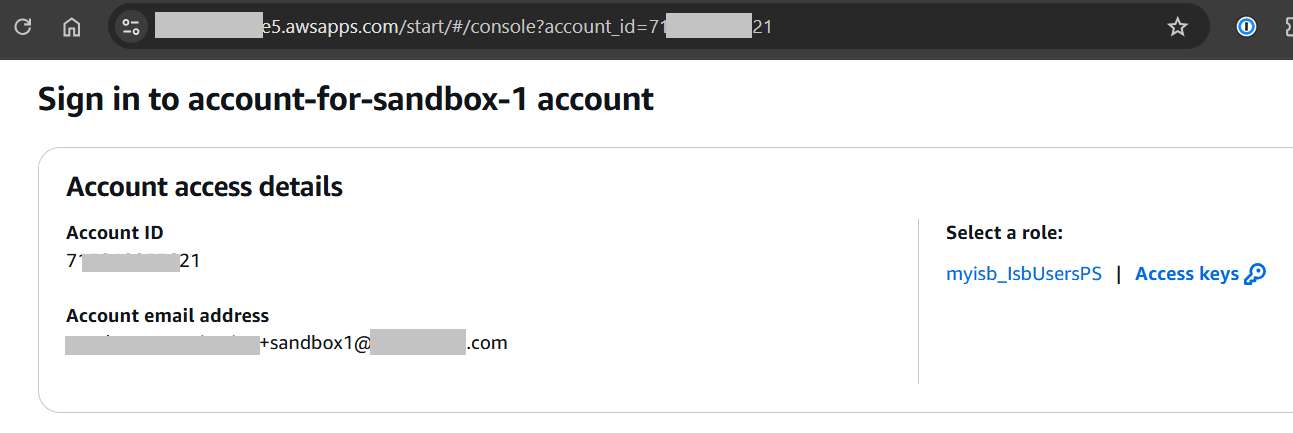
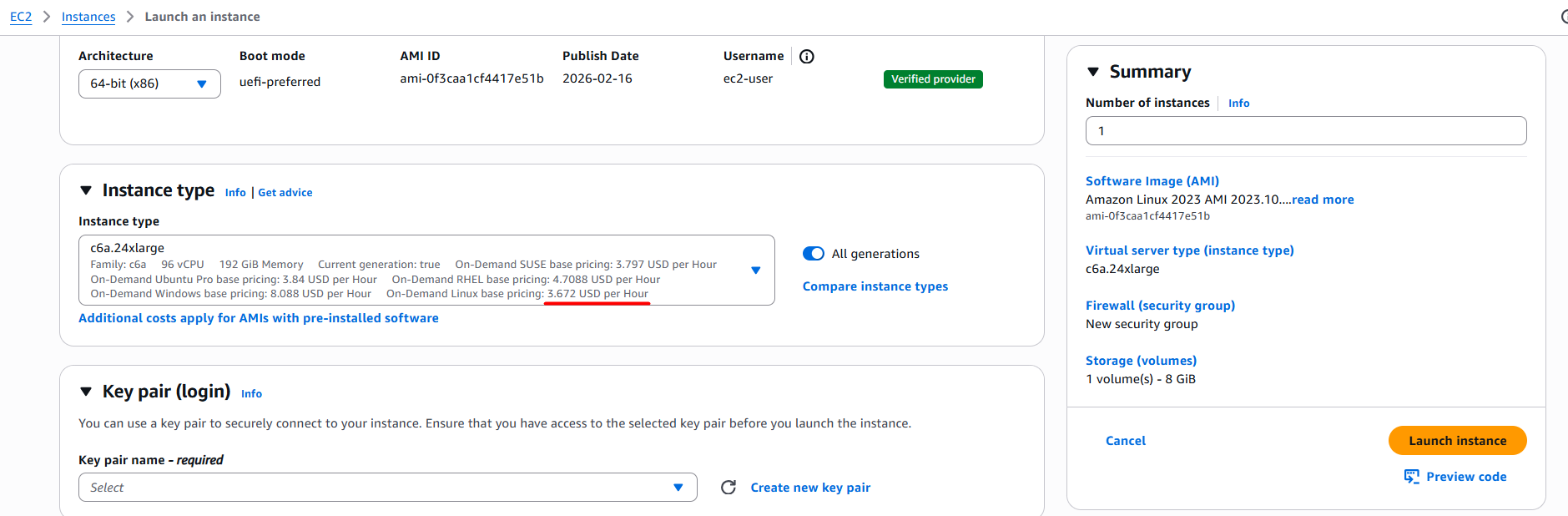
The user requested a test env with a 10$ budget. Let’s launch an EC2 instance, which costs 3.6$ per hour, and test the automation:

The lease status (budget and time) is available for both, user and the admin:

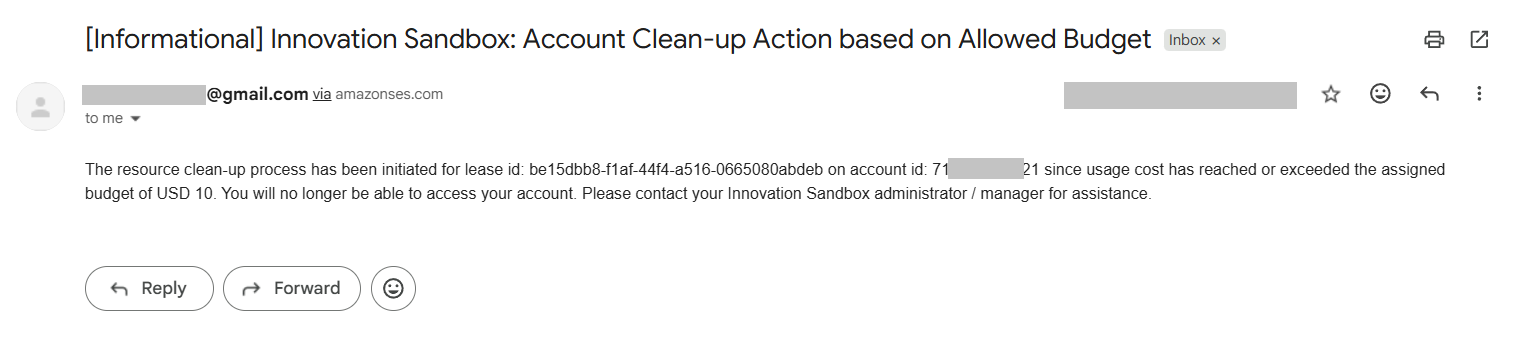
In our case, when the budget (10$) is consumed, we automatically wipe the account:
An email notification is sent to the user:
Conclusion
In this post, I demonstrated a user-friendly, transparent, and convenient way to manage AWS Sandbox environments, provide access, keep environments secure, and track cloud spending. The solution is built entirely on AWS services and costs approximately ~35$ per month for a small deployment, ~65$ per month for a medium deployment, and ~150$ per month for a large deployment.